
DIMAGE 2300 SOFTWARE - Image Processing Software KONICA MINOLTA - Free user manual and instructions
Find the device manual for free DIMAGE 2300 SOFTWARE KONICA MINOLTA in PDF.


| Product Type | Image Processing Software |
| Brand | KONICA MINOLTA |
| Model | DIMAGE 2300 SOFTWARE |
| Compatible Operating System | Windows 98, Windows 98 Second Edition |
| Required Processor | Intel Pentium 90 MHz or higher |
| Required RAM | 32 MB minimum |
| Free Hard Disk Space | 80 MB for workspace |
| Screen Resolution | VGA (640 x 480) or higher, High Color (16-bit) |
| Required Device | CD-ROM drive, USB port |
| Included Complementary Software | MGI PhotoSuite SE |
| TWAIN Compatibility | Adobe Photoshop 4.0.1, 5.0.2, 5.5, Adobe Photoshop LE 5.0, MGI PhotoSuite SE 1.0, Paint Shop Pro 5.0, Corel Photo Paint 8 |
| Interface Language | English (manual in English) |
| Main Functions | Copy images to hard disk, TWAIN acquisition, delete images, display properties, download |
| Installation | Automatic via CD-ROM with wizard |
| Camera Connection | USB (cable included) |
| Manual Page Count | 33 |
| Manual Format |
Frequently Asked Questions - DIMAGE 2300 SOFTWARE KONICA MINOLTA
User questions about DIMAGE 2300 SOFTWARE KONICA MINOLTA
0 question about this device. Answer the ones you know or ask your own.
Ask a new question about this device
Download the instructions for your Image Processing Software in PDF format for free! Find your manual DIMAGE 2300 SOFTWARE - KONICA MINOLTA and take your electronic device back in hand. On this page are published all the documents necessary for the use of your device. DIMAGE 2300 SOFTWARE by KONICA MINOLTA.
USER MANUAL DIMAGE 2300 SOFTWARE KONICA MINOLTA
E SOFTWARE INSTRUCTION MANUAL
For Windows®98
For USB Connection
This manual does not provide instructions for the basic operation of personal computers, or the basic operation of Windows® operating system. Please refer to the manual that came with your computer for information on the above mentioned topics.
- Microsoft® and Windows® are registered trademarks in the United States and other countries of Microsoft Corporation.
- The official name of Windows® is Microsoft® Windows® Operating System.
- Pentium® is a registered trademark of Intel Corporation.
- Other company and product names are the trademark or registered trademark of their respective owners.
BEFORE YOU BEGIN
USER REGISTRATION 4
TERMS USED IN THIS MANUAL. 5
SYSTEM REQUIREMENTS 6
INSTALLING THE SOFTWARE 8
INSTALLING THE MGI PHOTOSUITE SE 10
CONNECTING THE CAMERA TO THE PC 11
LAUNCHING THE SOFTWARE
LAUNCHING THE UTILITY SOFTWARE 14
LAUNCHING THE TWAIN DRIVER 16
USING THE SOFTWARE
COPYING IMAGE FILES TO THE HARD DRIVE 21
ACQUIRING IMAGES INTO THE APPLICATION 21
DELETING IMAGE FROM THE CF CARD. 26
VIEWING IMAGE FILE PROPERTIES 28
QUITTING THE UTILITY SOFTWARE 30
QUITTING THE TWAIN DRIVER 31
USER REGISTRATION
Please register this software before you begin using it. Complete both sides of the enclosed user registration card, detach along the perforated line, and mail. No postage is necessary.
Persons who register their software are recognised as official users, and receive technical support as well as software upgrade and other new product information.
- Please be aware that you will not receive any notification of registration from Minolta.
- The information contained on your registration card is used exclusively by Minolta for customer service and product development. The information you provide will be kept private and confidential.
TERMS USED IN THIS MANUAL
- This manual assumes that your computer's operating system (Windows®98) as well as other necessary software such as device drivers have been installed, and are operating properly.
- This manual assumes the use of a two-button, right-handed mouse for Windows®. The terms 'click' and 'double-click' refer to a single or double click of the left mouse button. The term 'drag' refers to the action of holding down the left mouse button while moving the mouse.
The system requirements for the operation of this software are as shown below:
| IBM PC/AT compatible computers | |
| Computers | IBM PC/AT compatible computers1 |
| CPU | Intel Pentium Processor 90MHz or higher |
| OS | Windows®98, Windows®98 Second Edition2 |
| RAM | A minimum of 32MB of RAM |
| Hard Disk Space | 80MB or more of free hard disk space for use as workspace |
| Monitor | VGA (640 x 480) or higher/High Colour (16-bit) |
| CD-ROM Drive | Required for installation |
| Interface | USB (Universal Serial Bus)3 |
| Others | TWAIN driver is compatible with Adobe Photoshop Ver. 4.0.1, 5.0.2, and 5.5, Adobe Photoshop LE Ver. 5.0, MGI PhotoSuite SE Ver. 1.0, Paint Shop Pro 5.0, and Corel Photo Paint 8 |
1 Not including computers built from kits, shop-brands or other computers for which components have been selected and assembled individually.
2 Pre-installed Windows®98/Windows®98 Second Edition only. Windows®98 upgraded from Windows®95 does not be guaranteed.
3 USB (Universal Serial Bus) port that each PC maker guarantees to operate without problem.
Use the following procedure to install Dimâge 2300 software on your computer.
The following explanation refers to the hard disk drive as drive C and the CD-ROM drive as drive D.
1 Turn the computer on to start up Windows®98.
2 Insert the Dimâge 2300 CD-ROM into the CD-ROM drive.
- The Choose Setup Language window opens.
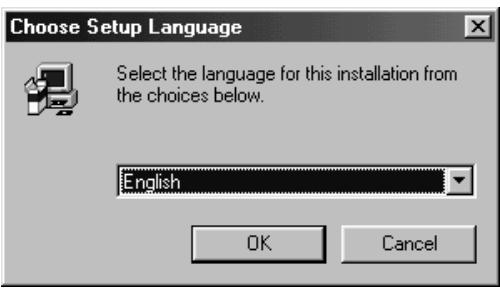
3 Select the language for the installation and click on 'OK'.
- The Dimage 2300 Setup program opens.
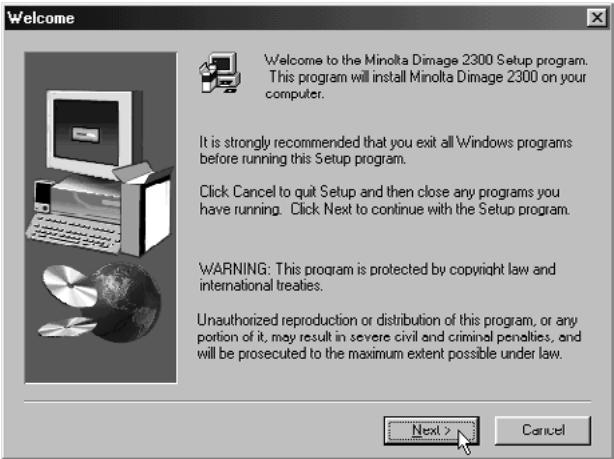
- In the event that the DimAge 2300 Setup program does not open automatically, click on the Start button, and then click on Run. Enter D:\Setup.exe in the text box and click on OK.
4 Click on 'Next >'.
- The Select Components window will appear.
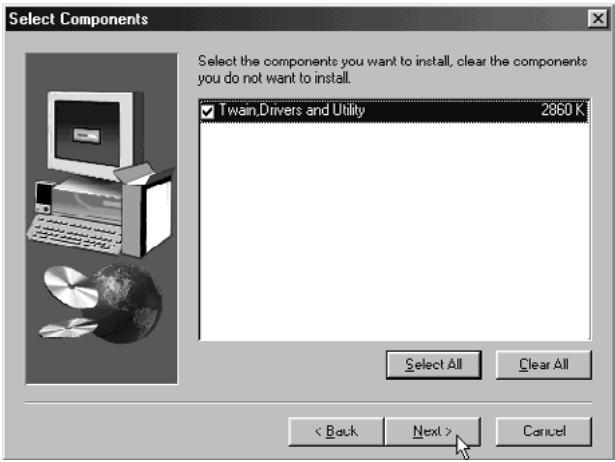
Make sure that the checkbox is marked, then click on 'Next >'.
- Setup will begin. After copying files, the building of driver information database will start automatically.
- After building driver information database, the following window will appear.
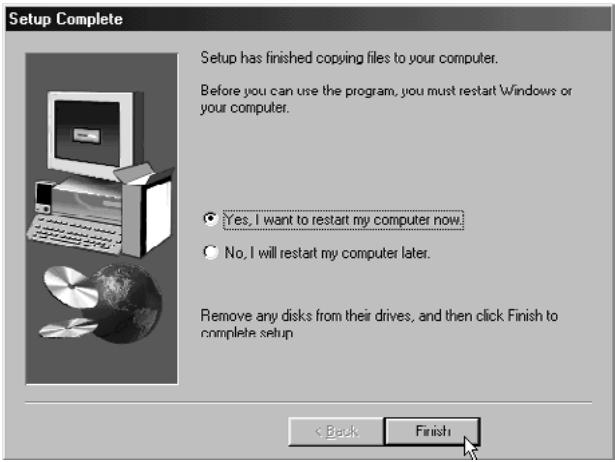
6 Remove any disks from their drives, then click on 'Finish'.
- The Setup program will complete and Windows® will be restarted.
Use the following procedure to install MGI PhotoSuite SE on your computer.
1 Turn the computer on to start up Windows®98.
2 Insert the MGI PhotoSuite SE CD-ROM into the CD-ROM drive.
After a while, the following screen will appear.
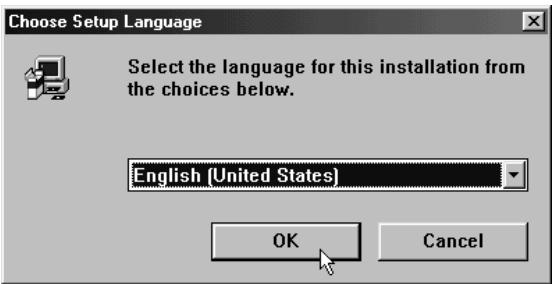
3 Select the language for the installation and click on 'OK'.
- The MGI PhotoSuite SE Setup program opens.
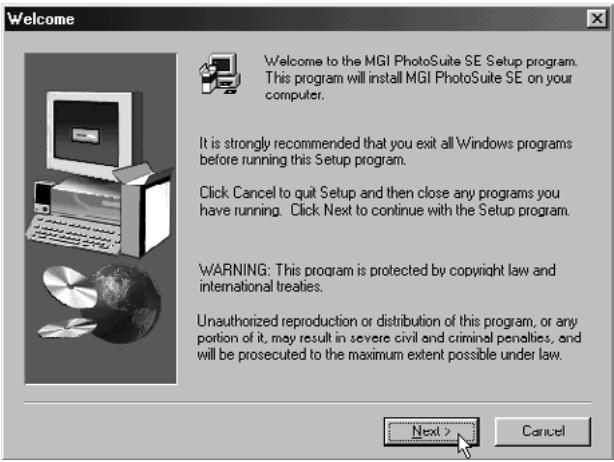
4 Click on 'Next >', then follow the direction on the screen.
Connect the Dimâge 2300 and your personal computer.
Turn the computer on to start up Windows®98.
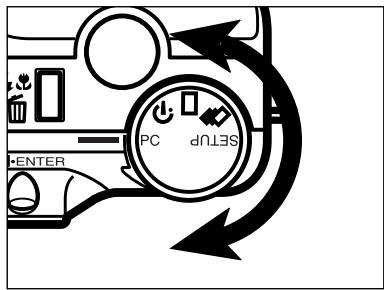
2 Turn the Function dial of the camera to PC.
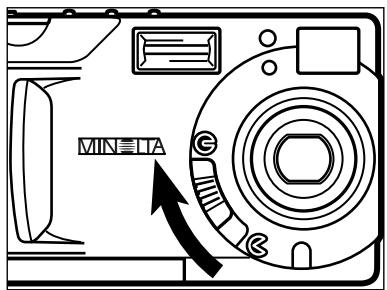
3 Move the lens cover slide to
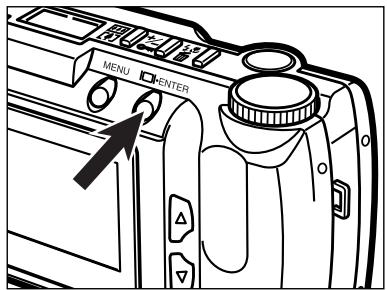
4 Press and hold the display/ENTER button.
- The camera will be turned on and "PC MODE" will appear in the upper-left corner of the camera's LCD monitor.
PC MODE

5 Attach the one end which has wider plug of the USB cable to the Dimâge 2300 USB/Serial connector.
6 Attach the other end of the USB cable to the USB port on the personal computer.
- After connecting the DimAge 2300 to the personal computer, Windows® system will detect the DimAge 2300 as a new hardware (New Hardware Found window will appear), and will install necessary files automatically.
LAUNCHING THE SOFTWARE
Following explanation is on the assumption that the Dimage 2300 has already been connected to the personal computer (see pages 11 to 12).
LAUNCHING THE UTILITY SOFTWARE
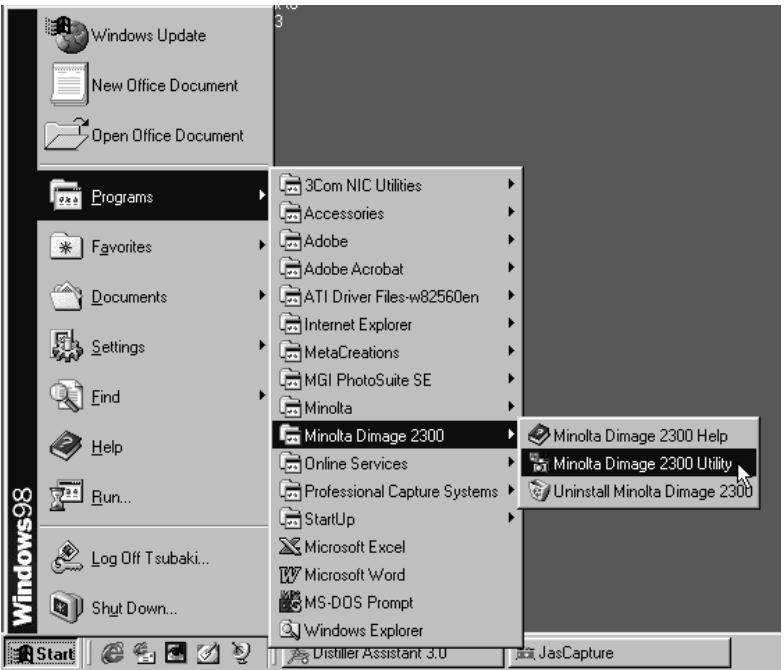
Select Start Programs Minolta DimAge 2300 Minolta DimAge 2300 Utility.
- Dimâge 2300 utility main window shown at the right will appear.
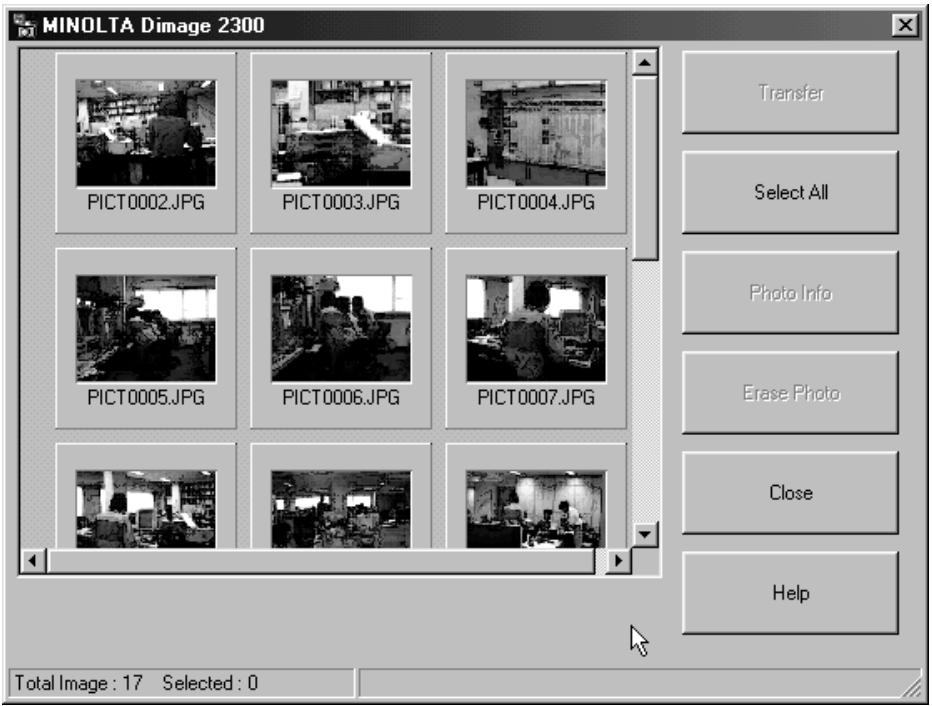
If there are a few TIFF files (image files that were taken with SUPER FINE image quality) or too many image files in the CF card, it could take some time the utility software is launched.
For example, 300 image files that were taken with ECONOMY image quality saved in the CF card, will take approx. 5 minutes until the utility software is launched.
LAUNCHING THE TWAIN DRIVER
This example uses MGI PhotoSuite SE as a TWAIN compliant application. The procedure will vary for other applications. See the operating manual for your application.
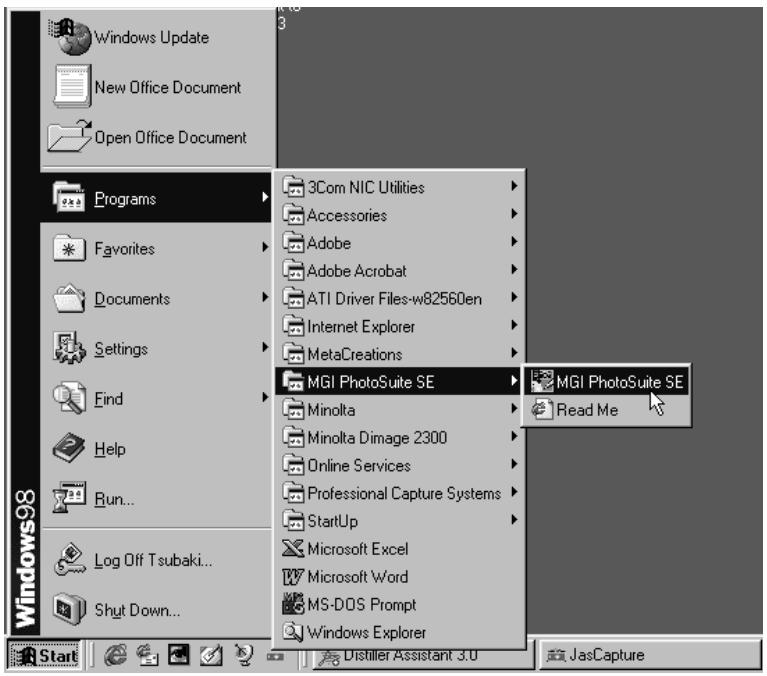
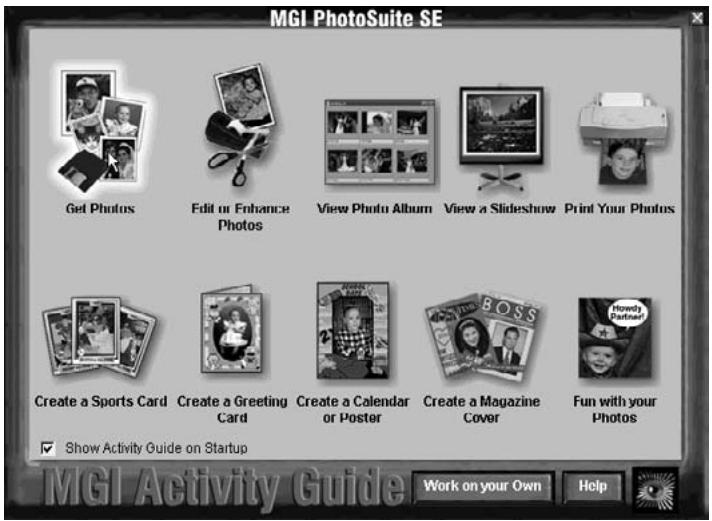
1 Select Start Programs MGI PhotoSuite SE MGI PhotoSuite SE to launch.
- MGI PhotoSuite SE Activity Guide window shown at the right will appear.
2 Click on 'Get Photos' in the Activity Guide window.
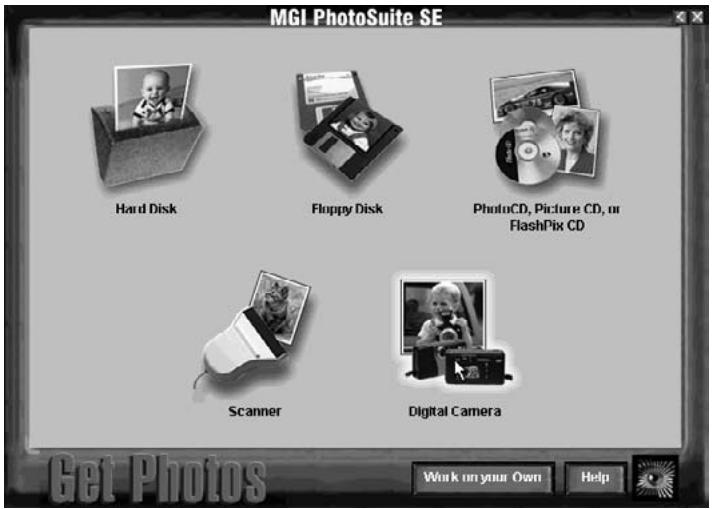
- Get Photos window will appear.
3 Click on 'Digital Camera' in the Get Photos window.
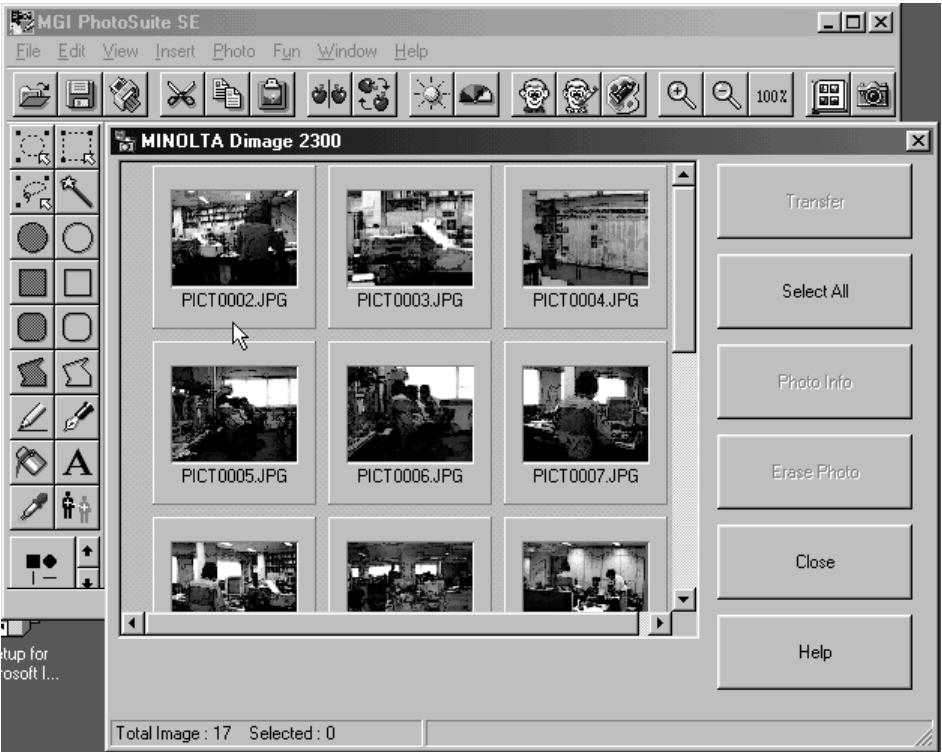
- After a while, Dimâge 2300 utility main window will be opened on the MGI PhotoSuite SE window.
- Dimâge 2300 utility main window will be opened on the MGI PhotoSuite SE window.
When the computer is unable to detect a connection to the Dimâge 2300, the following error message opens.
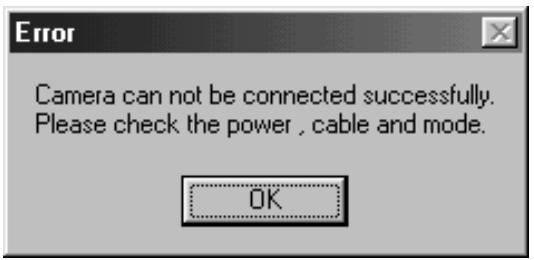
In such a case, perform the following troubleshooting operations:
1 Click on 'OK' to close the error message window.
2 Check the following:
- Did you turn on the Dimâge 2300?
- Is the USB cable connected properly?
- Has the USB cable separated from a connector?
- Has the USB cable been cut or damaged?
- Did you set the Function dial of the DimAge 2300 to PC?
After verifying that all of the above have been performed properly, try to connect to the Dimâge 2300 again, following the instructions on pages 11 to 12.
USING THE SOFTWARE
COPYING IMAGE FILES TO THE HARD DRIVE
ACQUIRING IMAGES INTO THE APPLICATION
When using Dimâge 2300 Utility software
Copy some or all of the image files saved in the compact flash card to your computer's hard drive or other memory device.
When using TWAIN driver
Acquire some or all of images into the image processing application.
1 Click on the images to be copied or acquired.
- The selected image(s) will be highlighted.
- To select two or more images, press and hold Ctrl (Control) key and click on the images to be copied or acquired.
- To select all the images, click on 'Select All' in the display.
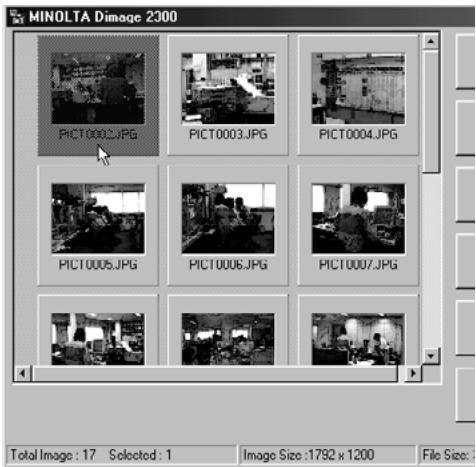
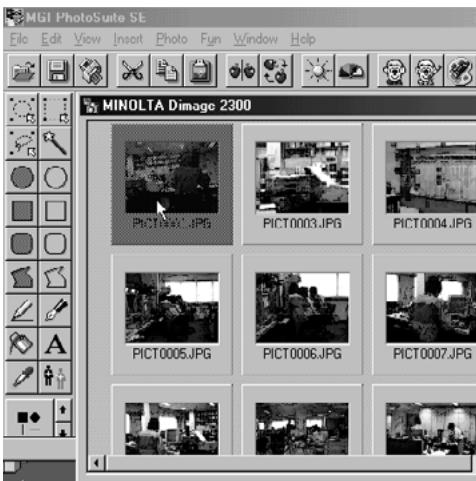
When using the Dimâge 2300 Utility Software:
2 Click on 'Transfer'.
- The Select a Folder dialog box opens.
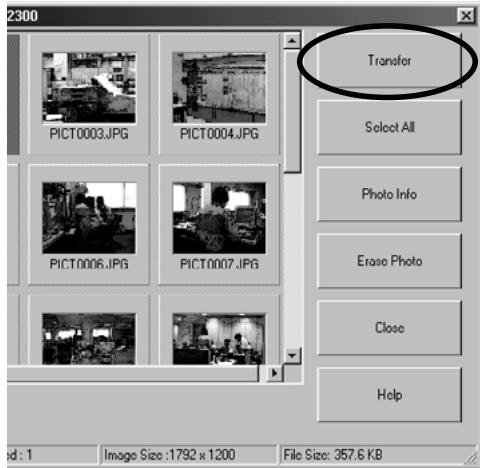


3 Select the folder to which the files are to be copied, and click on 'OK'.
- The selected image files begin to copy. When finished, Dimâge 2300 utility software main window will appear.
When using the TWAIN Driver:
2 Click on 'Transfer'.
- The acquire function will start. When the image is being acquired, a bar graph will show the progress of completion.
- When complete, images are acquired into the TWAIN compliant application (in this case, the MGI PhotoSuite SE), and will be displayed on the monitor.
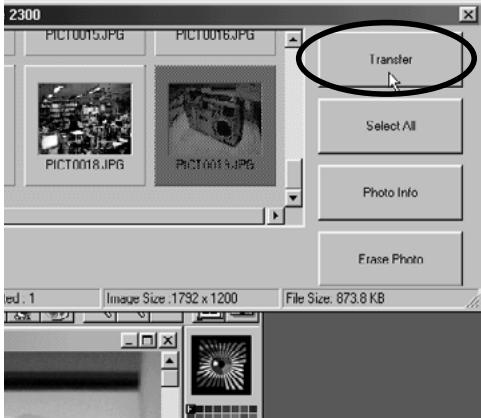
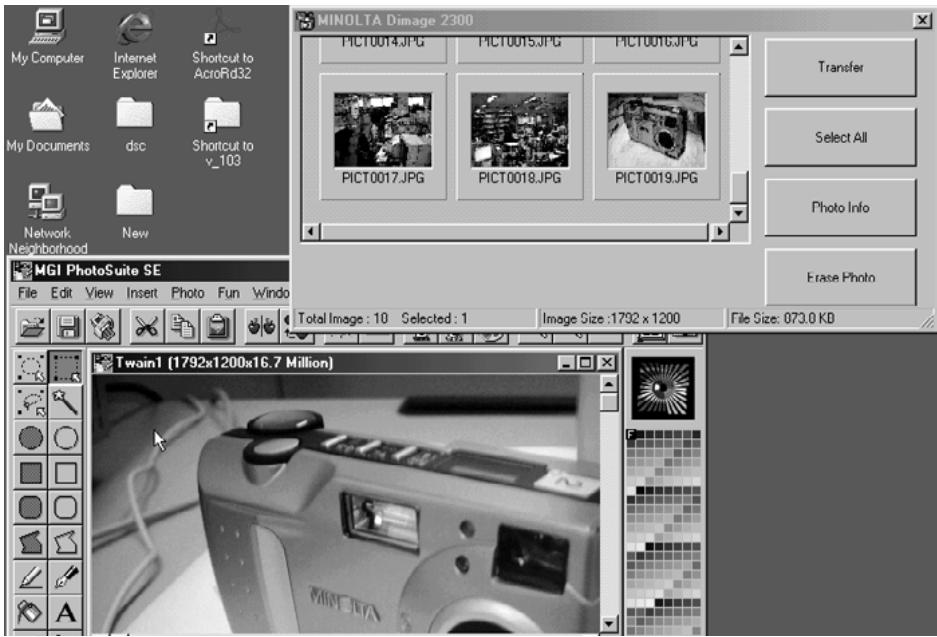
- Further operations on the image are passed on to the MGI PhotoSuite SE. Refer to the MGI PhotoSuite SE's manual for details.
- The MGI PhotoSuite SE's manual is saved in the D:\Docs folder of the MGI PhotoSuite SE CD-ROM (on the assumption that your CD-ROM drive is drive D) as a PDF file.
DELETING IMAGES FROM THE CF CARD
Some or all of the images can be deleted from the compact flash (CF) card.
1 Click on the images to be deleted.
- The selected image(s) will be highlighted.
- To select two or more images, press and hold Ctrl (Control) key and click on the images to be deleted.
- To delete all the images, click on 'Select All' in the display.
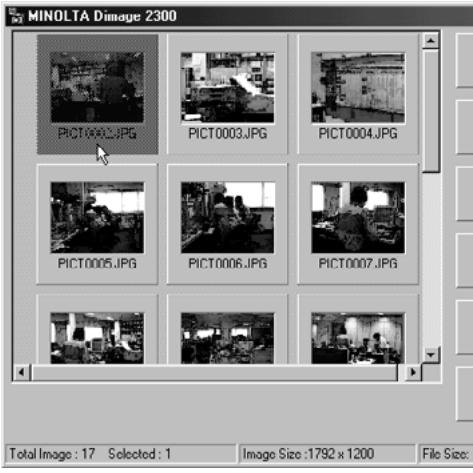
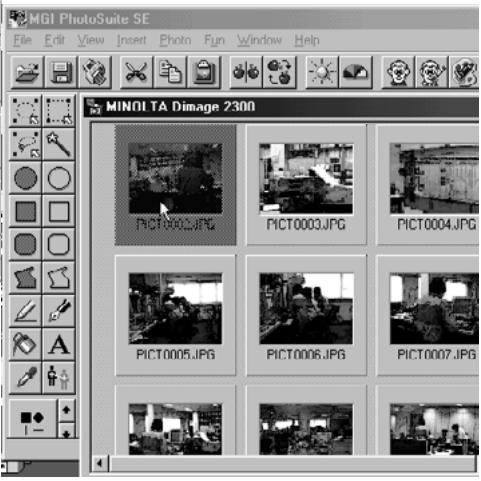
2 Click on 'Erase Photo'.
The confirmation message will appear.
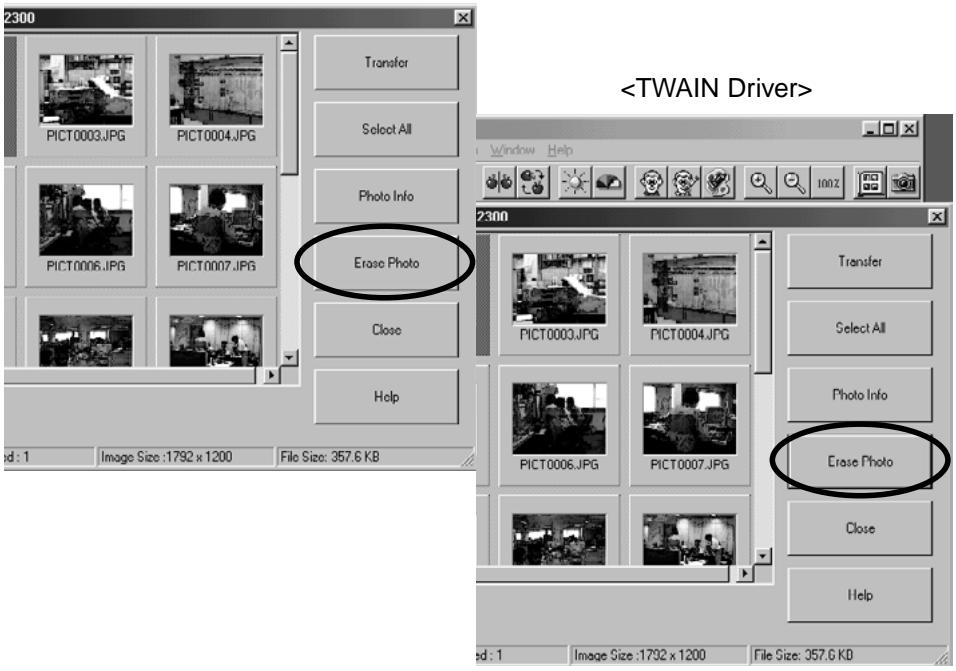
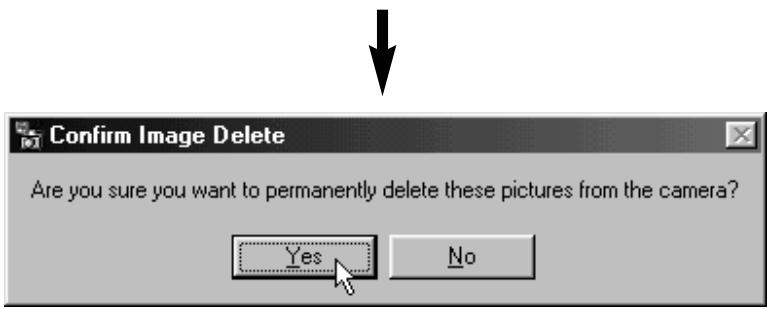
3 Click on 'Yes' to delete images. Click on 'No' to cancel the operation.
VIEWING IMAGE FILE PROPERTIES
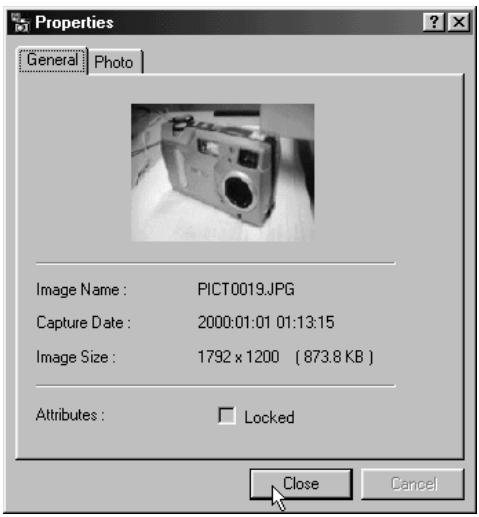
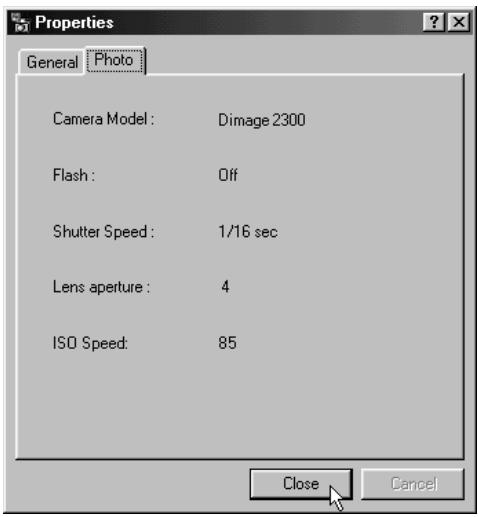
Use the following procedure to view image file properties such as capture date, image size.
1 Click on the image you wish to view the properties.
- The selected image will be highlighted.
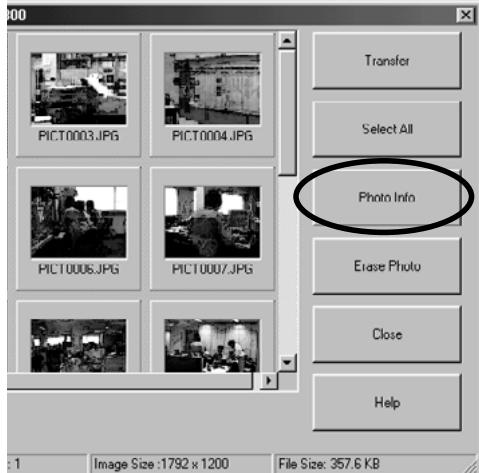
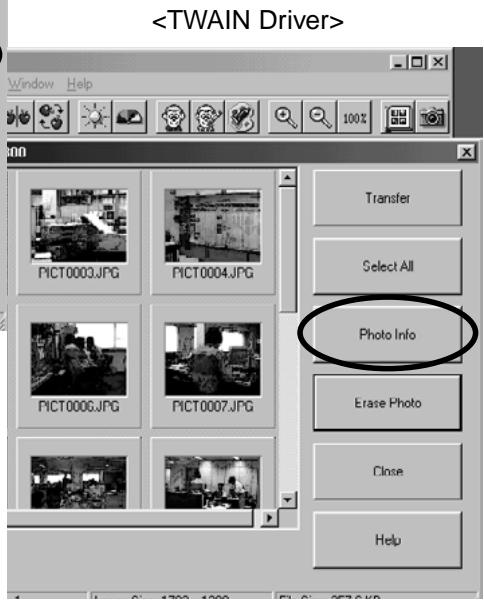
2 Click on 'Photo Info'.
- The properties of the selected image file will be displayed.
QUITTING THE UTILITY SOFTWARE
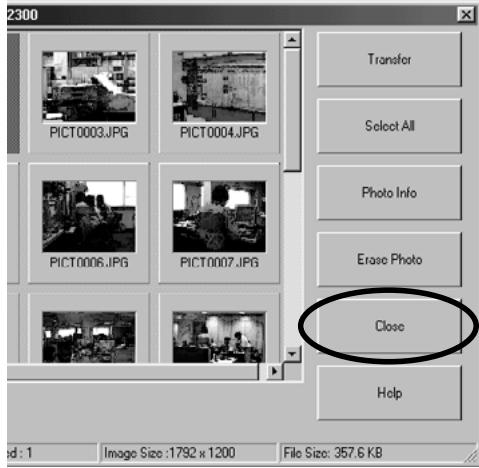
1 Click on 'Close' in the Dimâge 2300 utility main window.
- The utility software will quit.
QUITTING THE TWAIN DRIVER
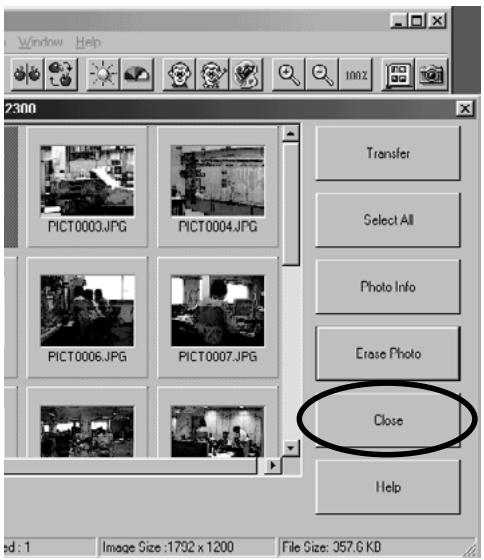
1 Click on 'Close' in the Dimage 2300 utility main window.
- The TWAIN driver will quit and the display will return to the TWAIN compliant application (in this case, MGI PhotoSuite SE).
A Minolta Austria Ges.m.b.H Amalienstr.59-61,A-1131 Wien,Österreich Tel:0187868176 Fax:01 87868 153 http://www.minoltaeurope.com
B Minolta Belgium Branch Prins Boudewijnlaan 1 B-2550 Kontich, Belgie Tel:034510700 Fax:034585048 http://www.minolta.be en http://www.minolta.nl
CAN Minolta Canada Inc., Head Office 369 Britannia Road East, Mississauga, Ontario L4Z 2H5, Canada Tel. 0905 890 66 00 Fax 0905 890 71 99 http://www.minolta.com
CH Minolta (Schweiz) AG
Riedstr. 6, CH-8953 Dietikon, Schweiz
Tel: 157 57 11 (sFr 2.15/min)
Fax: 01 741 33 12
http://www.minolta.ch
- BEFORE YOU BEGIN
- LAUNCHING THE SOFTWARE
- USING THE SOFTWARE
- USER REGISTRATION
- TERMS USED IN THIS MANUAL
- Click on 'Next >'.
- Make sure that the checkbox is marked, then click on 'Next >'.
- Remove any disks from their drives, then click on 'Finish'.
- LAUNCHING THE UTILITY SOFTWARE
- Select Start Programs Minolta DimAge 2300 Minolta DimAge 2300 Utility.
- LAUNCHING THE TWAIN DRIVER
- Select Start → Programs → MGI PhotoSuite SE → MGI PhotoSuite SE to launch.
- Click on 'Get Photos' in the Activity Guide window.
- Click on 'Digital Camera' in the Get Photos window.
- COPYING IMAGE FILES TO THE HARD DRIVE
- ACQUIRING IMAGES INTO THE APPLICATION
- When using Dimâge 2300 Utility software
- When using TWAIN driver
- Click on the images to be copied or acquired.
- When using the Dimâge 2300 Utility Software:
- Click on 'Transfer'.
- Select the folder to which the files are to be copied, and click on 'OK'.
- When using the TWAIN Driver:
- DELETING IMAGES FROM THE CF CARD
- Click on the images to be deleted.
- Click on 'Erase Photo'.
- Click on 'Yes' to delete images. Click on 'No' to cancel the operation.
- VIEWING IMAGE FILE PROPERTIES
- Click on the image you wish to view the properties.
- Click on 'Photo Info'.
- QUITTING THE UTILITY SOFTWARE
- Click on 'Close' in the Dimâge 2300 utility main window.
- QUITTING THE TWAIN DRIVER
- Click on 'Close' in the Dimage 2300 utility main window.
Brand : KONICA MINOLTA
Model : DIMAGE 2300 SOFTWARE
Category : Image Processing Software